
Before You Move Anything
Moving a website can look deceptively simple. Copy the files, point the domain to the new server, and cancel the old hosting account.
That approach can work right up until the business discovers that its email stopped receiving messages, an old DNS record was forgotten, the contact form no longer sends, analytics disappeared, or an important page now returns a 404 error.
A safer migration starts before anything is changed. The goal is to create a complete record of what the website depends on, copy what can be copied, identify what must be recreated, and keep the old environment available until the new one has been tested.
For a small business, that preparation can turn a stressful emergency into a controlled maintenance project.
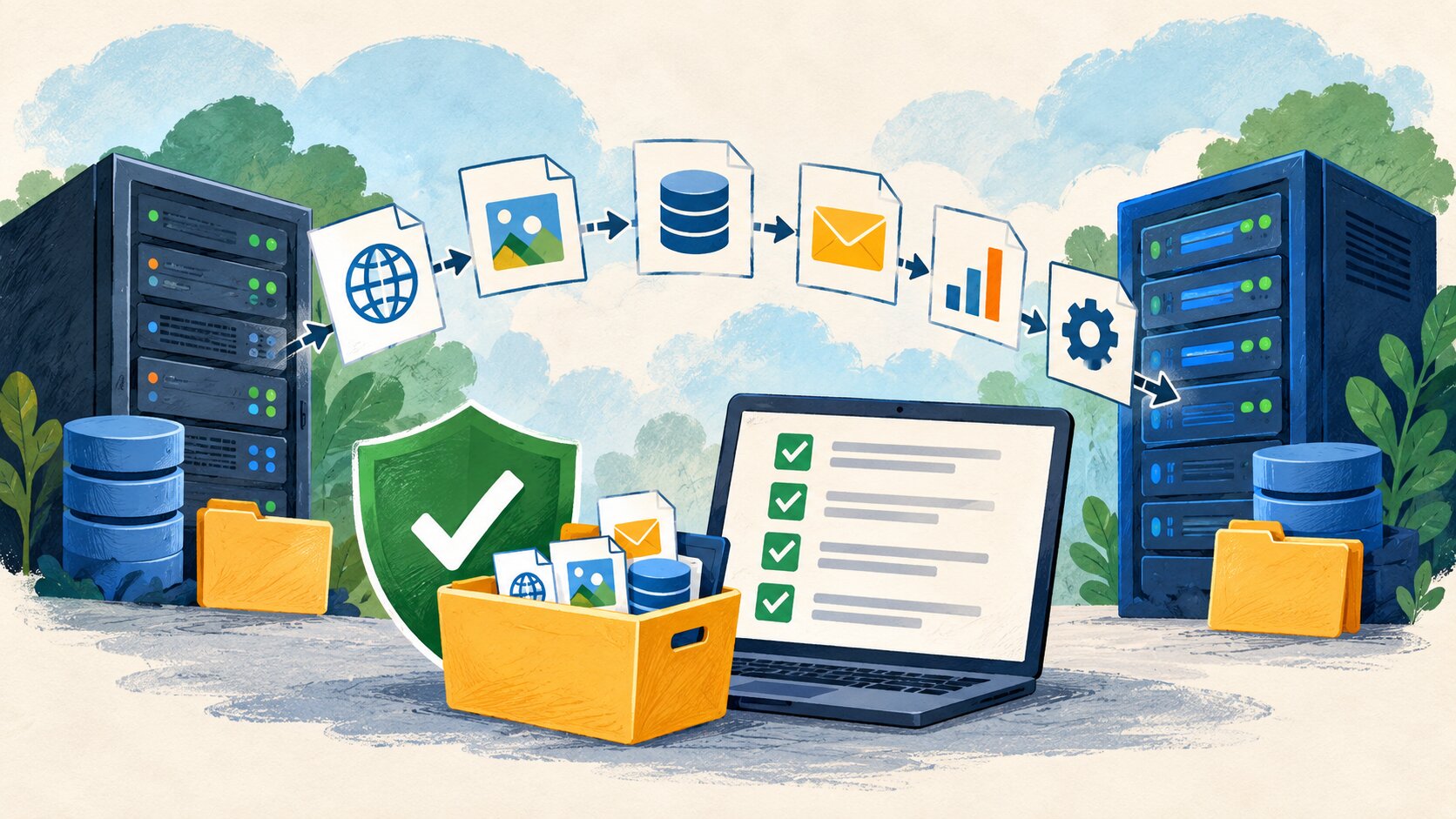
Website Migration at a Glance
- Best for: Businesses changing hosting companies, servers, website platforms, developers, or infrastructure.
- Main takeaway: Back up the website and document its connected services before touching DNS.
- Time and effort: A simple brochure website may take a few hours. Stores, membership sites, custom applications, or sites with business email can require substantially more preparation.
- Best result to expect: Visitors continue reaching the site while the business keeps control of its domain, email, files, data, analytics, and search visibility.
- When not to use this approach: Do not rush a production migration when you do not have working administrative access, backups, or a way to restore the old site.
What a Website Migration Actually Includes
A hosting migration is rarely just a collection of website files.
A typical business website can depend on several separate systems:
- Domain registrar
- DNS provider
- Web hosting
- Content management system
- Database
- Business email
- SSL/TLS certificates
- Contact forms
- Payment or ecommerce services
- Analytics
- Search Console or webmaster tools
- CDN or caching service
- Backup system
- Scheduled jobs
- API keys and third-party integrations
Some businesses have all of these under one provider. Others may have five or six companies involved.
That distinction matters because changing the web server does not automatically move everything connected to the website.
Three terms worth separating
- Domain registrar: The company responsible for the registration of your domain name.
- DNS provider: The service controlling records that tell browsers, email servers, and other systems where your services are located.
- Web host: The server or platform that actually stores and serves your website.
One company can perform all three jobs, but they are still separate functions.
A realistic migration scenario
Imagine a landscaping company with a WordPress website.
The website runs on Host A, the domain is registered with Registrar B, DNS is managed through another provider, and employee email uses Microsoft 365.
If the owner moves the website to Host C, the email service does not need to move at all.
But if someone replaces the entire DNS zone with Host C's default records instead of changing only the website records, the company's mail-related MX, SPF, DKIM, or verification records could disappear.
The website might work perfectly while business email stops working.
That is why recording the existing DNS configuration is one of the most important migration steps.
Build Your Migration Package First
Before changing hosting, DNS, nameservers, or the domain registration, create a migration package.
Think of it as the business's recovery kit.
1. Export the website files
Download a complete copy of the website files.
For WordPress and similar systems, that usually includes:
- Application files
- Themes
- Plugins or extensions
- Uploaded images and documents
- Configuration files
- Hidden files such as
.htaccesswhen applicable
Do not assume a hosting company's automated migration utility is your only backup.
A separate copy under your control gives you another recovery option.
2. Export the database
Dynamic websites usually store pages, settings, users, orders, configuration information, and other content in a database.
For WordPress, this is commonly MySQL or MariaDB.
A file-only backup may therefore be incomplete.
Record the database name and create an export before the migration begins.
3. Save a copy of the current DNS zone
This step is easy to overlook.
Record every existing DNS entry, including:
- A records
- AAAA records
- CNAME records
- MX records
- TXT records
- SPF-related entries
- DKIM records
- DMARC records
- Service verification records
- Subdomains
Screenshots are useful, but a text or CSV export is better when the provider offers one.
You want enough information to reconstruct the zone without guessing.
4. Record who controls the domain
Confirm:
- Registrar name
- Account used to manage the domain
- Domain expiration date
- Registrant contact information
- Whether transfer lock is enabled
- Whether two-factor authentication is enabled
- Where nameservers currently point
ICANN advises domain registrants to maintain access to their registrar and keep registration information current.
This becomes especially important during a hosting migration because changing hosting providers and transferring the domain registration are two different operations.
5. Inventory business email
Write down where email is actually hosted.
Do not infer this from the website host.
Look at the domain's MX records and identify the provider.
If the company uses Google Workspace, Microsoft 365, Zoho Mail, or another independent email platform, those records will usually remain in place when only the website moves.
6. Export configuration information
Depending on the site, save details for:
- PHP version
- Scheduled tasks or cron jobs
- Redirect rules
- CDN configuration
- Firewall rules
- Caching configuration
- SMTP settings
- API integrations
- Payment gateways
- Webhooks
- Form destinations
- Backup schedules
Do not publish private credentials inside a migration document. Store passwords, API secrets, and recovery codes in an appropriate password manager or secure credential system.
7. Record important URLs
Create a short list of pages you can test immediately after launch.
For example:
- Homepage
- Contact page
- Service page
- Blog article
- Login page
- Checkout or payment page
- Important downloadable file
This gives you a repeatable test instead of clicking around randomly after the move.
Migration package checklist
Before proceeding, you should ideally have:
- Website file backup
- Database export
- DNS record export
- Registrar information
- Email provider information
- Important configuration settings
- Redirect rules
- Analytics identifiers
- List of important URLs
- Credentials stored separately
- A rollback plan
Migration Day: Change as Little as Possible
A common mistake is combining several unrelated changes into one event.
For example, a business might simultaneously:
- Change hosting companies
- Change registrars
- Change nameservers
- Change email providers
- Install a new theme
- Change the domain
- Restructure URLs
If something fails, identifying the cause becomes much harder.
A safer approach is to move one major component at a time whenever practical.
A lower-risk sequence
- Prepare the new hosting environment.
- Restore or copy the website.
- Test the new site before changing public DNS.
- Confirm forms, databases, logins, and integrations.
- Reproduce any server-specific configuration.
- Change only the DNS records required for the website.
- Verify that email-related DNS remains intact.
- Test the public website.
- Monitor the old and new environments.
- Cancel the old service only after the migration has proven stable.
If the domain and URLs are not changing, you generally do not need to redesign the site's URL structure just because the hosting provider changed.
If URLs or the domain itself are changing, search engines need additional signals such as redirects. Google's Search Central provides separate migration guidance for site moves involving URL changes.
Quick decision guide
- If you are only changing web hosting, keep the registrar, domain, email, and unrelated DNS records unchanged unless there is a specific reason to move them.
- If you are changing DNS providers, copy the complete DNS zone before switching nameservers.
- If you are changing domains or URL structures, prepare redirects and follow search-engine site-move guidance.
- If you are transferring the domain to another registrar, treat that as a separate project from moving the website.
- If you do not have a verified backup, stop before changing the production environment.
Common Migration Mistakes That Cause Outages
Most migration problems are not caused by copying a file incorrectly. They happen because an overlooked dependency was changed or removed.
Replacing the DNS zone with defaults
A new host may provide DNS records for the website.
That does not mean the host's default zone contains the records used by your email provider, third-party services, or domain verification systems.
Better approach: Preserve the existing DNS records and change only what needs to change.
Canceling the old host immediately
A site may appear to work from one computer while other visitors still reach the previous server because of DNS caching.
There may also be missing files or settings you do not discover until later.
Better approach: Keep the former hosting environment available during the verification period whenever possible.
Forgetting the database
A directory full of WordPress files is not a complete WordPress backup if the database is missing.
Better approach: Back up both the files and the database.
Moving the domain unnecessarily
Changing hosting companies does not normally require transferring the domain registration.
A registrar transfer introduces another process, another set of credentials, and potentially additional restrictions.
ICANN also documents circumstances involving transfer locks, including certain changes of registrant information.
Better approach: Separate the hosting migration from the registrar transfer unless there is a clear reason to combine them.
Testing only the homepage
The homepage can load while important functions are broken.
Test:
- Contact forms
- Search
- Login
- Checkout
- Images
- Downloads
- Redirects
- HTTPS
- Mobile layout
- Administrative access
For ecommerce sites, perform an appropriate test of the purchase process before considering the migration complete.
When a Full Migration Is Not the Best Answer
Sometimes the problem can be solved without relocating everything.
| Option | Best for | Pros | Cons |
|---|---|---|---|
| Change only the web host | Server performance, pricing, or support problems | Fewer moving parts | Existing registrar and DNS still need management |
| Change DNS provider only | DNS reliability or management needs | Website can remain where it is | Requires careful record replication |
| Transfer registrar only | Domain management or billing issues | Consolidates domain control | Does not move the website |
| Rebuild on a new platform | Major redesign or outdated technology | Opportunity to simplify the site | More testing, redirect planning, and content review |
Changing fewer systems at once usually makes troubleshooting easier.
Finish the Move Before You Cancel Anything
A migration is not complete when the homepage appears on the new server.
It is complete when the systems the business relies on are verified.
Check the website from multiple devices or networks when practical. Verify forms. Confirm email sending and receiving. Review analytics. Test important pages. Check HTTPS. Confirm administrative access.
For critical business data, maintain reliable backups even after the move. CISA guidance for small and mid-sized organizations recommends backing up critical data and system configurations and keeping recoverable copies appropriately protected from the production environment.
What to Do Next
Create a simple website ownership and recovery document for your business.
It should identify the registrar, DNS provider, host, email provider, analytics account, backup location, and the people authorized to administer each service.
Final pre-cancellation checklist
- New website loads correctly
- HTTPS works without certificate warnings
- Contact forms deliver messages
- Business email sends and receives normally
- Important pages and downloads work
- Redirects have been tested
- Analytics is receiving data
- Administrative login works
- Current backup has been created
- DNS records are documented
- Old hosting is no longer required for rollback
Only then should cancellation of the previous hosting service enter the conversation.
Website Migration FAQ
Q1. Do I need to transfer my domain when I change web hosts?
No. Changing the server hosting the website and transferring the domain registration are separate operations. In many migrations, the domain can remain with the existing registrar while DNS is updated to point the website to the new server.
Q2. Can changing web hosting break business email?
It can if the migration changes or removes DNS records used by the email provider. A website-only migration should preserve unrelated MX and email-authentication records unless the email service is also being changed.
Q3. Is copying the website files enough for WordPress?
Usually not. WordPress stores important content and configuration information in a database, so a complete migration normally requires both the files and database.
Q4. Should I cancel the old hosting account as soon as the new website loads?
Usually not. Keep it available until the new site, forms, email dependencies, SSL, redirects, analytics, and important pages have been verified and you are confident a rollback is no longer necessary.
Q5. Will changing hosts hurt Google rankings?
A hosting change that keeps the same domain and URLs is different from a site move that changes URLs. Major problems are more likely when the migration causes downtime, broken pages, poor performance, lost redirects, or other accessibility issues. When URLs change, follow Google's site-move guidance.
By: Raxan Express
Last updated: October 5, 2026
Disclosure: This article is independently published for educational purposes and is not sponsored by a hosting company, registrar, or website platform.


0 Comments